
How it works
Upload or email your document, walk to any student printer, tap your card, and pick the job from the release screen. Jobs not released within a day or two are purged. Double-sided and grayscale are the default to stretch your quota.
Troubleshooting
If a file prints wrong, export it to PDF and resend — the converter handles fonts and layout better that way. Large jobs, posters, and specialty paper go through the print/copy center, not the self-service queue.
In and around Porter Falls
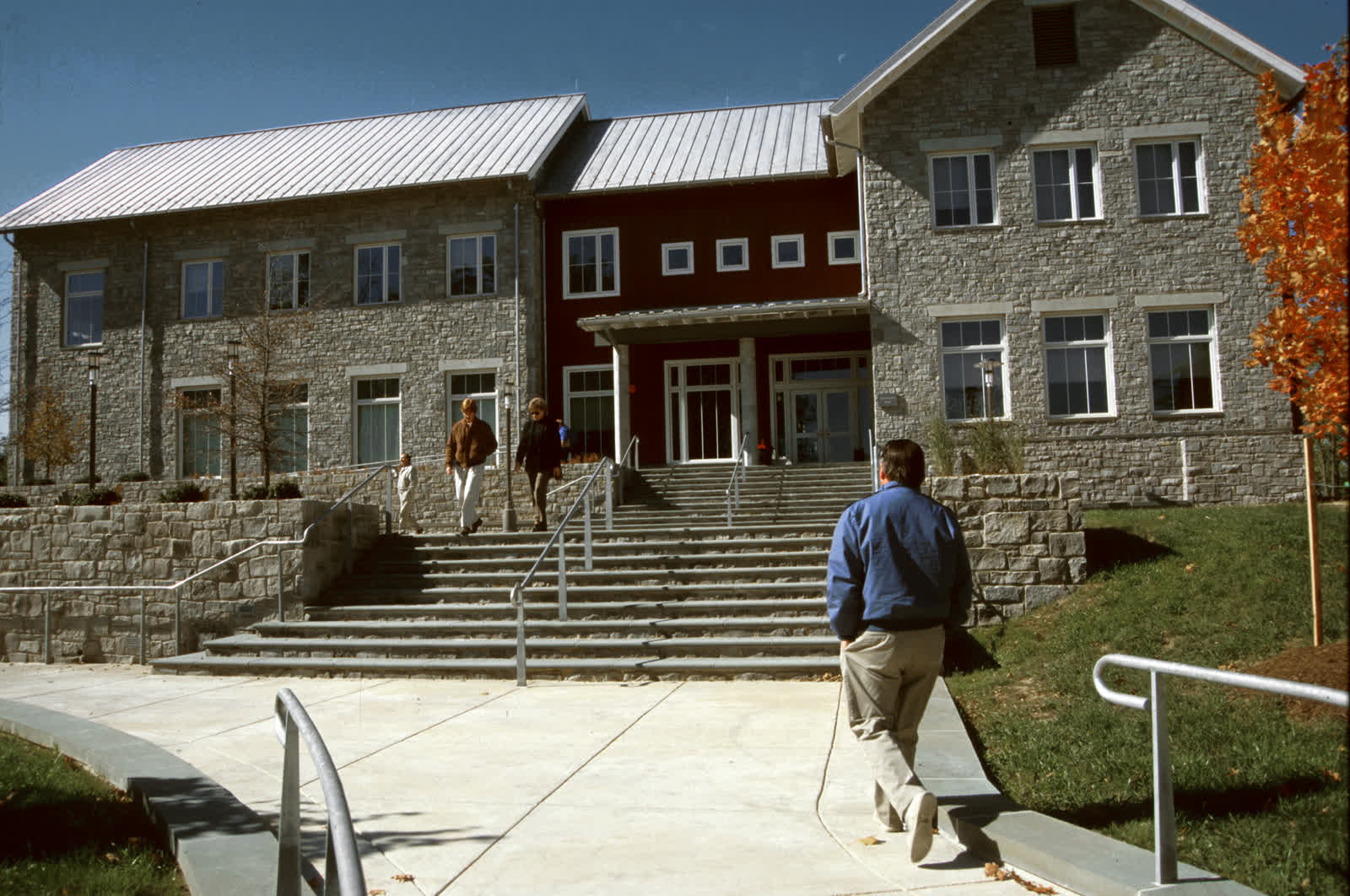
The Technology Help Desk is on the first floor of the Jarvis Technology Center. One student identity signs into MyPorter, the learning environment, campus Wi-Fi, printing and the library.
The practical details
Ways in: A web portal upload, emailing the file to a print address, or the mobile-print app; release the job at any printer with your Porter Card. Quota: Every student gets a per-term printing allotment; overage is charged to the Porter Card account. Formats: PDF is most reliable; the portal converts common office and image files. Anything time-sensitive — an accommodation, a booking, a deadline — is worth confirming directly before you rely on it, because the specifics here can change from term to term.
If you have a question
The office behind this is Technology Help Desk (Jarvis Technology Center, Room 105). Call (715) 555–0120 or email helpdesk@uwporterfalls.edu during the fall and spring terms, or sign in to MyPorter to send a message or book a time. If it turns out another office owns the question, they will route it rather than send you back to the start.
Fictional information
UW–Porter Falls is a work of parody. Every office, person, building, phone number and statistic on this page is invented; nothing here describes a real institution or a service you can actually contact.